Use voice commands to easily control settings and preferences without using the touchscreen. Voice commands are designed to understand natural requests. The following is a non-exhaustive list of actions that you can perform with voice commands:
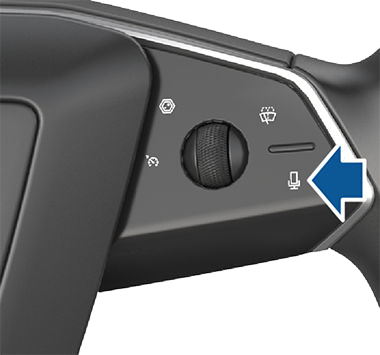
To initiate a voice command, fully press the microphone button on the right side of the steering wheel. When a chime sounds, make your request.
Examples of Voice Commands
Here is a list of example voice commands. This is not an exhaustive list. Tesla is constantly working to improve voice commands.
NOTE: Your vehicle must be in Park to enable some voice commands (such as Sentry Mode, Dog Mode, etc.).
Climate Controls
Adjust your climate preferences:
-
- “Make it cooler”
- “Make it warmer”
- “Turn on/off the driver’s seat heater”
- “Cool down the passenger”
- “Direct airflow to my face”
- “Sync climate”
- “Increase/decrease the fan speed”
- “Turn on/off rear defroster”
- “Set the temperature/fan…”
- “Turn on recirculate”
Windshield Wiper
Update the windshield wiper speed and frequency based on changing road and weather conditions:
- “Speed up the wiper”
- “Turn on/off the wiper”
- “Increase/decrease windshield wiper speed by…”
Vehicle Controls
Modify various controls in your vehicle:
- “Sentry Mode on/off”
- “Keep my truck safe”
- “Lock/unlock the doors”
- “Turn on Dog Mode”
- “Fold/unfold the mirrors”
- “Open/close charge port”
- “Start/stop charging”
- “Open service settings”
- “Open the glovebox”
Navigation
Search for or navigate to a location:
- “Where is [location]?”
- “Drive to [location]”
- “Navigate to [location]”
- “Show nearby Superchargers”
- “I’m feeling hungry/lucky” (see Maps and Navigation on page 163).
- “Stop navigation”
- “Mute voice guidance”
If you have defined a navigation address for your home or work locations, you can use a voice command to navigate there by saying “Navigate home” or “Take me to work”.
Contacts
To call or text a contact on your Bluetooth-connected phone (see Phone, Calendar, and Web Conferencing on page 69), say:
-
- “Call [contact name/phone number]”
- “Text [contact name/phone number]”
Media
Listen to media and adjust your playback preferences:
-
- “Listen to [song name]”
- “Lower/raise the volume”
- “Skip to next”
- “Pause/play song”
- “Change the source to [media source]”
To improve voice command recognition accuracy, provide multiple cues in your command, such as artist and song.
Apps and Settings
Easily navigate through your apps and settings:
-
- “Open [Toybox/browser/theater/phone]”
- “Search for…”
- “The screen is too bright”
- “Show me the Owner’s Manual”
You can also file a bug report by saying “Report” , “Feedback”, or “Bug report”.
For more information on voice commands, go to https:// www.tesla.com/support/voice-commands.
NOTE: To support ongoing quality improvements, Tesla captures and processes voice command transcriptions (such as “set the temperature…”). Audio voice recordings are not collected, and transcriptions are not associated with your Tesla account or with your vehicle’s identification number. To further protect your privacy, voice commands containing personal data are not captured (such as “Navigate to…” or “Make a call to…”).