Overview
The touchscreen displays the status of Cybertruck at all times. What you see depends on whether the vehicle is:
-
- Parked (see Touchscreen on page 7).
- Driving (see Driving Status on page 18).
- Charging (see Charging Status on page 177).
When Cybertruck is parked, the status area shows the drive mode, estimated range, suspension height and available adjustments, and an exterior view of the vehicle with buttons you can touch to open the tonneau cover, tailgate, powered frunk, and charge port door.
When you press the brake pedal, Cybertruck powers up and indicator lights flash briefly. Unless an indicator light applies to the current situation (for example, a seat belt is not fastened), it should turn off. If an indicator light fails to turn on or off, schedule a service appointment.
Cards
The bottom of the vehicle status display also shows shortcut “Cards” for quick access to Media, tire pressure data, trip information, and more. Swipe the cards to the left or right to customize your cards shortcuts.
Indicator Lights
The following indicator lights illuminate to advise or alert you of a specific status or condition.
|
USA and Mexico:
|
If the touchscreen displays this red brake indicator at any time other than briefly when you first start Cybertruck, a brake system fault is detected, or the level of the brake fluid is low. Contact Tesla immediately. Apply steady pressure and keep the brake pedal firmly pressed to stop the vehicle when safe to do so. |

|
Canada:
|
If the touchscreen displays this red brake indicator at any time other than briefly when you first start Cybertruck, a brake system fault is detected, or the level of the brake fluid is low. Contact Tesla immediately. Apply steady pressure and keep the brake pedal firmly pressed to stop the vehicle when safe to do so. |

|
USA and Mexico: |
When you manually apply the parking brake using the touchscreen, the red parking brake indicator lights up on the touchscreen. |

|
Canada:
|
When you manually apply the parking brake using the touchscreen, the red parking brake indicator lights up on the touchscreen. |

|
|
A seat belt for an occupied seat is not fastened. See Seat Belts on page 39. |

|
|
Airbag safety. If this indicator does not flash on briefly when Cybertruck prepares to drive, or if it remains on, contact Tesla immediately. See Airbag Status Indicator on page 50. |
|
|
A door or the powered frunk is open. |
|
|
Cybertruck detects a faulty electrical connection for the trailer lights. Some, or all, trailer lights may not be functioning. Pull over as soon as safety permits and inspect the trailer lights for faulty cabling or connections. If the issue is resolved and the red icon persists, manually turn Trailer Mode off and on again. See Towing a Trailer on page 110. |
|
|
Tire pressure warning. The pressure of a tire is out of specification. If a fault with the Tire Pressure Monitoring System (TPMS) is detected, the indicator flashes. For a TPMS fault, schedule a service appointment. See Tire Pressures on page 195. |
|
|
The tailgate is open. See Cargo Bed on page 60. |
|
|
The powered frunk is open. See Powered Frunk on page 58. |
|
|
This indicator flashes when the electronic stability control systems are actively minimizing wheel spin by controlling brake pressure and motor power. See Traction Control on page 91. If this indicator remains on, a fault is detected and you should immediately contact Tesla. |
|
|
Electronic stability control systems are no longer minimizing wheel spin. See Off-Road Driving on page 100. |


|
USA and Mexico:
|
The ABS indicator briefly flashes amber on the touchscreen when you first start Cybertruck. If this indicator lights up at any other time, an ABS fault has occurred and the ABS is not operating. Contact Tesla. The braking system remains fully operational and is not affected by an ABS failure. However, braking distances may increase. Drive cautiously and avoid heavy braking. |

|
Canada:
|
The ABS indicator briefly flashes amber on the touchscreen when you first start Cybertruck. If this indicator lights up at any other time, an ABS fault has occurred and the ABS is not operating. Contact Tesla. The braking system remains fully operational and is not affected by an ABS failure. However, braking distances may increase. Drive cautiously and avoid heavy braking. |

|
USA and Mexico:
|
The touchscreen displays this amber brake indicator if a brake booster fault is detected. Apply steady pressure and keep the brake pedal firmly pressed to stop the vehicle when safe to do so. Hydraulic Boost Compensation will be active (see Hydraulic Boost Compensation on page 87). |

|
Canada:
|
The touchscreen displays this amber brake indicator if a brake booster fault is detected. Apply steady pressure and keep the brake pedal firmly pressed to stop the vehicle when safe to do so. Hydraulic Boost Compensation will be active (see Hydraulic Boost Compensation on page 87). |

|
USA and Mexico: |
If the parking brake experiences an electrical issue, the amber parking brake indicator lights up and a fault message displays on the touchscreen. |

|
Canada:
|
If the parking brake experiences an electrical issue, the amber parking brake indicator lights up and a fault message displays on the touchscreen. |

|
|
Vehicle power is currently being limited because the energy remaining in the Battery is low, the vehicle’s systems are being heated or cooled, or an error is detected by a drive inverter. |
|
|
Rear fog lights are enabled. See Lights on page 82. |
|
|
Cybertruck detects a connection for trailer lights but Trailer Mode is disabled. It is likely that a carrying accessory has been connected. See See Towing a Trailer on page 110 |
|
|
Locking differential is engaged. This icon may blink orange while the locking differential is engaging or disengaging (see Locking Differentials on page 105 for more information). |
|
|
Appears when regenerative braking is limited. See Regenerative Braking on page 87 for more information. |
|
|
Fog lights are enabled. See Lights on page 82. |


|
|
Parking lights are on (side marker lights, tail lights, and license plate lights). See Lights on page 82. |
|
|
Low beam headlights are on. See Lights on page 82. |
|
|
High beam headlights are on and Auto High Beam is disabled or currently unavailable. See Headlights on page 82. |
|
|
Auto High Beam is enabled and high beams are on. Cybertruck is ready to turn off the high beams if needed. See Headlights on page 82. |
|
|
Trailer Mode is active. See Towing a Trailer on page 110. |
|
|
Some of the energy stored in the Battery may not be available due to cold weather conditions. In cold weather, charging rates may also be limited. If Cybertruck is plugged in, you can heat your Battery by turning on climate control with the mobile app. This icon disappears when the Battery is sufficiently warm. |
|
|
Vehicle Hold is actively applying the brakes. See Vehicle Hold on page 88. |
|
|
Pedestrian Warning System is disabled. See Pedestrian Warning System on page 99. |
|
|
Auto High Beam is enabled but high beams are not on because another vehicle is detected in front of Cybertruck. When there is no longer another vehicle detected, high beams automatically turn back on. See Headlights on page 82. |


|
|
Locking differential is disengaged (see Locking Differentials on page 105 for more information). |

|
|
The differential locker is in an unknown locker position (see Locking Differentials on page 105 for more information). |

|
|
There is a system fault or the locking differential is unavailable (see Locking Differentials on page 105 for more information). |

See Popup Messages and Vehicle Alerts on page 9 for more information about alert popups on your vehicle’s touchscreen.
Driving Status
When Cybertruck is driving (or ready to drive), the touchscreen shows your current driving status and real-time visualization of the road as detected by the Autopilot components (see Cameras on page 27). The visualization automatically zooms in and out to better utilize touchscreen space and inform you when a vehicle is detected in your blind spot.
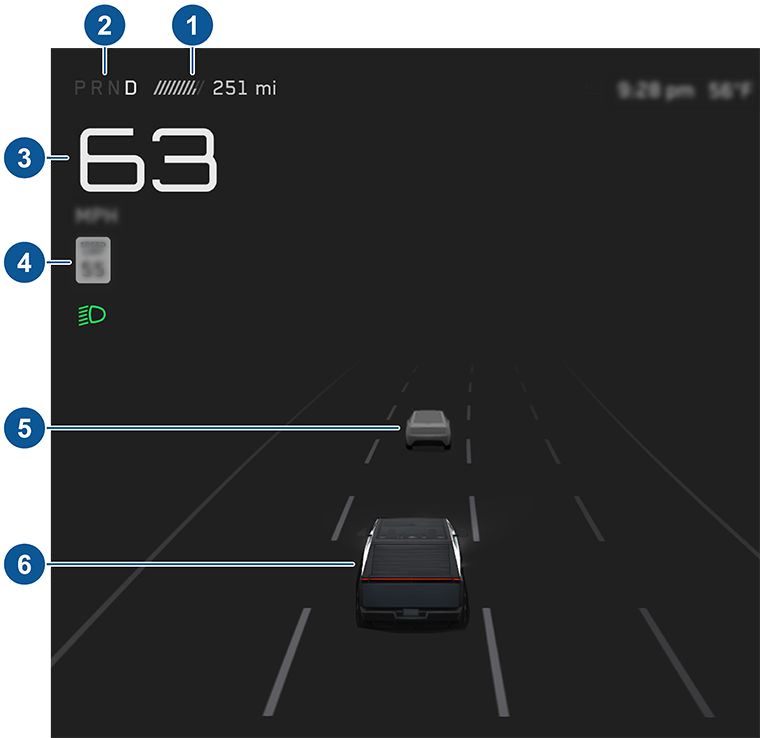
The touchscreen also shows the following:
- Total estimated driving distance (or energy) available. You can toggle between driving distance and percentage of Battery energy remaining by touching the displayed value. You can also change how energy is displayed by touching Controls > Display > Energy Display. When anticipating when you need to charge, use range estimates as a general guideline only.
- Currently selected drive mode: Park, Reverse, Neutral, or Drive (see Shifting on page 73).
- Driving speed.
- The speed limit that is currently being detected by Speed Assist (see Speed Assist on page 147). The icon associated with the detected speed limit reflects the style of speed limit signs used in your market region.
NOTE: A blue outline may appear around the speed limit icon to notify that you are above the speed limit.
- Other cars detected on the road (as applicable).
- Your Cybertruck. Colored lines radiate from the image of your Cybertruck as objects are detected (other motorists, guard rails, etc.). The location of the lines correspond to the location of the detected object. The color of the lines (white, yellow, orange, or red) represents the object’s proximity to Cybertruck, with white being the farthest and red being very close and requiring your immediate attention. See Lane Assist on page 141.
 WARNING: Pay attention to important alert messages that display at the bottom of the vehicle status area of the touchscreen. Ignoring these messages can result in serious injury or death.
 WARNING: Although the touchscreen shows surrounding traffic, some vehicles may not be displayed. Never rely on the detected displayed vehicles to determine if a vehicle is present (for example, in your blind spot). Always use your mirrors and perform shoulder checks.
Overview
The touchscreen displays the status of Cybertruck at all times. What you see depends on whether the vehicle is:
-
- Parked (see Touchscreen on page 7).
- Driving (see Driving Status on page 18).
- Charging (see Charging Status on page 177).
When Cybertruck is parked, the status area shows the drive mode, estimated range, suspension height and available adjustments, and an exterior view of the vehicle with buttons you can touch to open the tonneau cover, tailgate, powered frunk, and charge port door.
When you press the brake pedal, Cybertruck powers up and indicator lights flash briefly. Unless an indicator light applies to the current situation (for example, a seat belt is not fastened), it should turn off. If an indicator light fails to turn on or off, schedule a service appointment.
Cards
The bottom of the vehicle status display also shows shortcut “Cards” for quick access to Media, tire pressure data, trip information, and more. Swipe the cards to the left or right to customize your cards shortcuts.
Indicator Lights
The following indicator lights illuminate to advise or alert you of a specific status or condition.
|
USA and Mexico:
|
If the touchscreen displays this red brake indicator at any time other than briefly when you first start Cybertruck, a brake system fault is detected, or the level of the brake fluid is low. Contact Tesla immediately. Apply steady pressure and keep the brake pedal firmly pressed to stop the vehicle when safe to do so. |

|
Canada:
|
If the touchscreen displays this red brake indicator at any time other than briefly when you first start Cybertruck, a brake system fault is detected, or the level of the brake fluid is low. Contact Tesla immediately. Apply steady pressure and keep the brake pedal firmly pressed to stop the vehicle when safe to do so. |

|
USA and Mexico: |
When you manually apply the parking brake using the touchscreen, the red parking brake indicator lights up on the touchscreen. |

|
Canada:
|
When you manually apply the parking brake using the touchscreen, the red parking brake indicator lights up on the touchscreen. |

|
|
A seat belt for an occupied seat is not fastened. See Seat Belts on page 39. |

|
|
Airbag safety. If this indicator does not flash on briefly when Cybertruck prepares to drive, or if it remains on, contact Tesla immediately. See Airbag Status Indicator on page 50. |
|
|
A door or the powered frunk is open. |
|
|
Cybertruck detects a faulty electrical connection for the trailer lights. Some, or all, trailer lights may not be functioning. Pull over as soon as safety permits and inspect the trailer lights for faulty cabling or connections. If the issue is resolved and the red icon persists, manually turn Trailer Mode off and on again. See Towing a Trailer on page 110. |
|
|
Tire pressure warning. The pressure of a tire is out of specification. If a fault with the Tire Pressure Monitoring System (TPMS) is detected, the indicator flashes. For a TPMS fault, schedule a service appointment. See Tire Pressures on page 195. |
|
|
The tailgate is open. See Cargo Bed on page 60. |
|
|
The powered frunk is open. See Powered Frunk on page 58. |
|
|
This indicator flashes when the electronic stability control systems are actively minimizing wheel spin by controlling brake pressure and motor power. See Traction Control on page 91. If this indicator remains on, a fault is detected and you should immediately contact Tesla. |
|
|
Electronic stability control systems are no longer minimizing wheel spin. See Off-Road Driving on page 100. |


|
USA and Mexico:
|
The ABS indicator briefly flashes amber on the touchscreen when you first start Cybertruck. If this indicator lights up at any other time, an ABS fault has occurred and the ABS is not operating. Contact Tesla. The braking system remains fully operational and is not affected by an ABS failure. However, braking distances may increase. Drive cautiously and avoid heavy braking. |

|
Canada:
|
The ABS indicator briefly flashes amber on the touchscreen when you first start Cybertruck. If this indicator lights up at any other time, an ABS fault has occurred and the ABS is not operating. Contact Tesla. The braking system remains fully operational and is not affected by an ABS failure. However, braking distances may increase. Drive cautiously and avoid heavy braking. |

|
USA and Mexico:
|
The touchscreen displays this amber brake indicator if a brake booster fault is detected. Apply steady pressure and keep the brake pedal firmly pressed to stop the vehicle when safe to do so. Hydraulic Boost Compensation will be active (see Hydraulic Boost Compensation on page 87). |

|
Canada:
|
The touchscreen displays this amber brake indicator if a brake booster fault is detected. Apply steady pressure and keep the brake pedal firmly pressed to stop the vehicle when safe to do so. Hydraulic Boost Compensation will be active (see Hydraulic Boost Compensation on page 87). |

|
USA and Mexico: |
If the parking brake experiences an electrical issue, the amber parking brake indicator lights up and a fault message displays on the touchscreen. |

|
Canada:
|
If the parking brake experiences an electrical issue, the amber parking brake indicator lights up and a fault message displays on the touchscreen. |

|
|
Vehicle power is currently being limited because the energy remaining in the Battery is low, the vehicle’s systems are being heated or cooled, or an error is detected by a drive inverter. |
|
|
Rear fog lights are enabled. See Lights on page 82. |
|
|
Cybertruck detects a connection for trailer lights but Trailer Mode is disabled. It is likely that a carrying accessory has been connected. See See Towing a Trailer on page 110 |
|
|
Locking differential is engaged. This icon may blink orange while the locking differential is engaging or disengaging (see Locking Differentials on page 105 for more information). |
|
|
Appears when regenerative braking is limited. See Regenerative Braking on page 87 for more information. |
|
|
Fog lights are enabled. See Lights on page 82. |


|
|
Parking lights are on (side marker lights, tail lights, and license plate lights). See Lights on page 82. |
|
|
Low beam headlights are on. See Lights on page 82. |
|
|
High beam headlights are on and Auto High Beam is disabled or currently unavailable. See Headlights on page 82. |
|
|
Auto High Beam is enabled and high beams are on. Cybertruck is ready to turn off the high beams if needed. See Headlights on page 82. |
|
|
Trailer Mode is active. See Towing a Trailer on page 110. |
|
|
Some of the energy stored in the Battery may not be available due to cold weather conditions. In cold weather, charging rates may also be limited. If Cybertruck is plugged in, you can heat your Battery by turning on climate control with the mobile app. This icon disappears when the Battery is sufficiently warm. |
|
|
Vehicle Hold is actively applying the brakes. See Vehicle Hold on page 88. |
|
|
Pedestrian Warning System is disabled. See Pedestrian Warning System on page 99. |
|
|
Auto High Beam is enabled but high beams are not on because another vehicle is detected in front of Cybertruck. When there is no longer another vehicle detected, high beams automatically turn back on. See Headlights on page 82. |


|
|
Locking differential is disengaged (see Locking Differentials on page 105 for more information). |

|
|
The differential locker is in an unknown locker position (see Locking Differentials on page 105 for more information). |

|
|
There is a system fault or the locking differential is unavailable (see Locking Differentials on page 105 for more information). |

See Popup Messages and Vehicle Alerts on page 9 for more information about alert popups on your vehicle’s touchscreen.
Driving Status
When Cybertruck is driving (or ready to drive), the touchscreen shows your current driving status and real-time visualization of the road as detected by the Autopilot components (see Cameras on page 27). The visualization automatically zooms in and out to better utilize touchscreen space and inform you when a vehicle is detected in your blind spot.
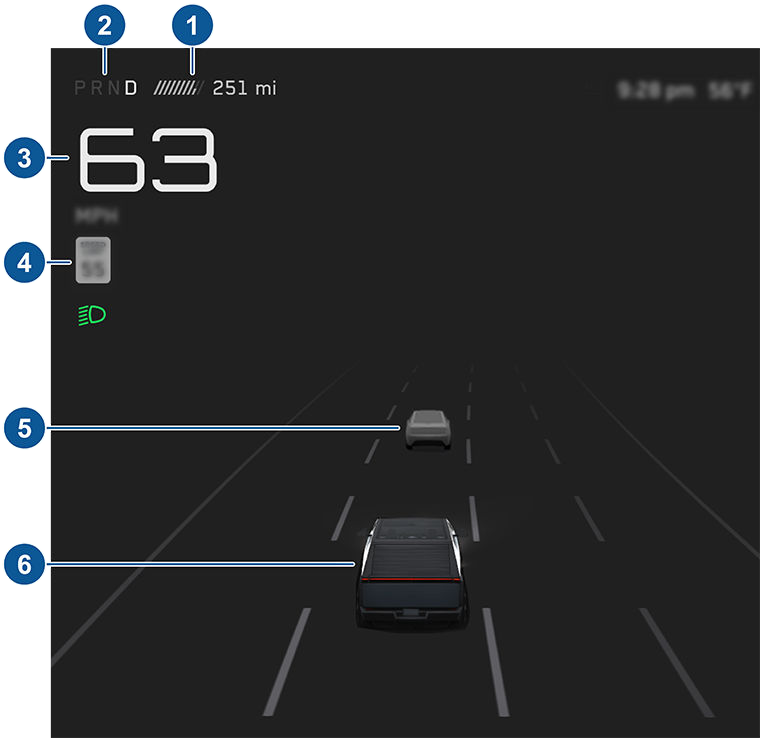
The touchscreen also shows the following:
- Total estimated driving distance (or energy) available. You can toggle between driving distance and percentage of Battery energy remaining by touching the displayed value. You can also change how energy is displayed by touching Controls > Display > Energy Display. When anticipating when you need to charge, use range estimates as a general guideline only.
- Currently selected drive mode: Park, Reverse, Neutral, or Drive (see Shifting on page 73).
- Driving speed.
- The speed limit that is currently being detected by Speed Assist (see Speed Assist on page 147). The icon associated with the detected speed limit reflects the style of speed limit signs used in your market region.
NOTE: A blue outline may appear around the speed limit icon to notify that you are above the speed limit.
- Other cars detected on the road (as applicable).
- Your Cybertruck. Colored lines radiate from the image of your Cybertruck as objects are detected (other motorists, guard rails, etc.). The location of the lines correspond to the location of the detected object. The color of the lines (white, yellow, orange, or red) represents the object’s proximity to Cybertruck, with white being the farthest and red being very close and requiring your immediate attention. See Lane Assist on page 141.
 WARNING: Pay attention to important alert messages that display at the bottom of the vehicle status area of the touchscreen. Ignoring these messages can result in serious injury or death.
 WARNING: Although the touchscreen shows surrounding traffic, some vehicles may not be displayed. Never rely on the detected displayed vehicles to determine if a vehicle is present (for example, in your blind spot). Always use your mirrors and perform shoulder checks.